· The Pomegranate team · 7 min read
Latency in live sound: buffer size, sample rate and what you can hear
How buffer size and sample rate set the latency of a live plugin rig, how much delay performers notice, and how to run plugins with as little as possible.
Every digital mixing system has latency: the time between sound hitting a microphone and coming out of a speaker or an in-ear monitor. When you add a computer running plugins, you add more. The good news is that the extra delay is predictable, and with the right settings it can stay small enough that nobody on stage notices.
Where the delay comes from
Audio moves through a computer in blocks called buffers. The audio interface fills a buffer with incoming samples, hands it to the host, the host runs every plugin on it, and the result goes back out. The size of that block, measured in samples, is the buffer size. You set it in your audio driver's control panel (on Windows this is usually the ASIO panel).
The time one buffer represents is simple to work out: buffer size ÷ sample rate.
| Buffer size | At 48 kHz | At 96 kHz |
|---|---|---|
| 32 samples | 0.67 ms | 0.33 ms |
| 64 samples | 1.33 ms | 0.67 ms |
| 128 samples | 2.67 ms | 1.33 ms |
| 256 samples | 5.33 ms | 2.67 ms |
A round trip through the computer takes at least two of those buffers, one coming in and one going out. On top of that, the interface's converters and the driver add a little more, which varies by manufacturer. Good drivers report their true round-trip figure, and that is the number to compare.
How much latency can performers hear?
Sound travels about a foot (30 cm) per millisecond in air. A guitarist standing ten feet from their amp is already hearing it about 9 ms late, and nobody thinks of that as latency. Performers on wedges are used to a few milliseconds of acoustic delay.
In-ear monitors are less forgiving. A singer's own voice reaches their ear through their skull with no delay at all, so small amounts of extra delay in the in-ear mix can sound like comb filtering or a slightly hollow tone. That is why monitor engineers care most about latency, and why it pays to keep the plugin path short on vocal channels that feed in-ears.
Sample rate: 48 kHz or 96 kHz?
Doubling the sample rate halves the time of each buffer, so 96 kHz looks like a free latency win. It isn't free. The computer has to finish every buffer in half the time, so plugin load roughly doubles, and on MADI a single connection carries 64 channels at 48 kHz but only 32 at 96 kHz. Most live rigs run at 48 kHz and use a small buffer instead.
Plugin latency and compensation
Some plugins add delay of their own because they need to look ahead at the audio: look-ahead limiters, linear-phase EQs and some noise-reduction tools. When one channel is delayed and another isn't, sources that should line up (two mics on a snare, a stereo pair, a vocal mic and its spill on the drum overheads) drift out of phase.
A live host has to compensate, delaying the other channels by the same amount so everything stays aligned. Pomegranate does this automatically. It is still worth knowing which plugins add delay, and keeping zero-latency versions on channels that feed in-ears. More on this in Staying stable through the whole show.
Getting the buffer as small as it will go
- Start with a capable computer. Strong single-core speed matters more than you'd expect for small buffers. See choosing a computer for live plugins.
- Use an interface with solid low-latency drivers. Driver quality varies between makers. For one measured example, see our guide to RME MADI interfaces.
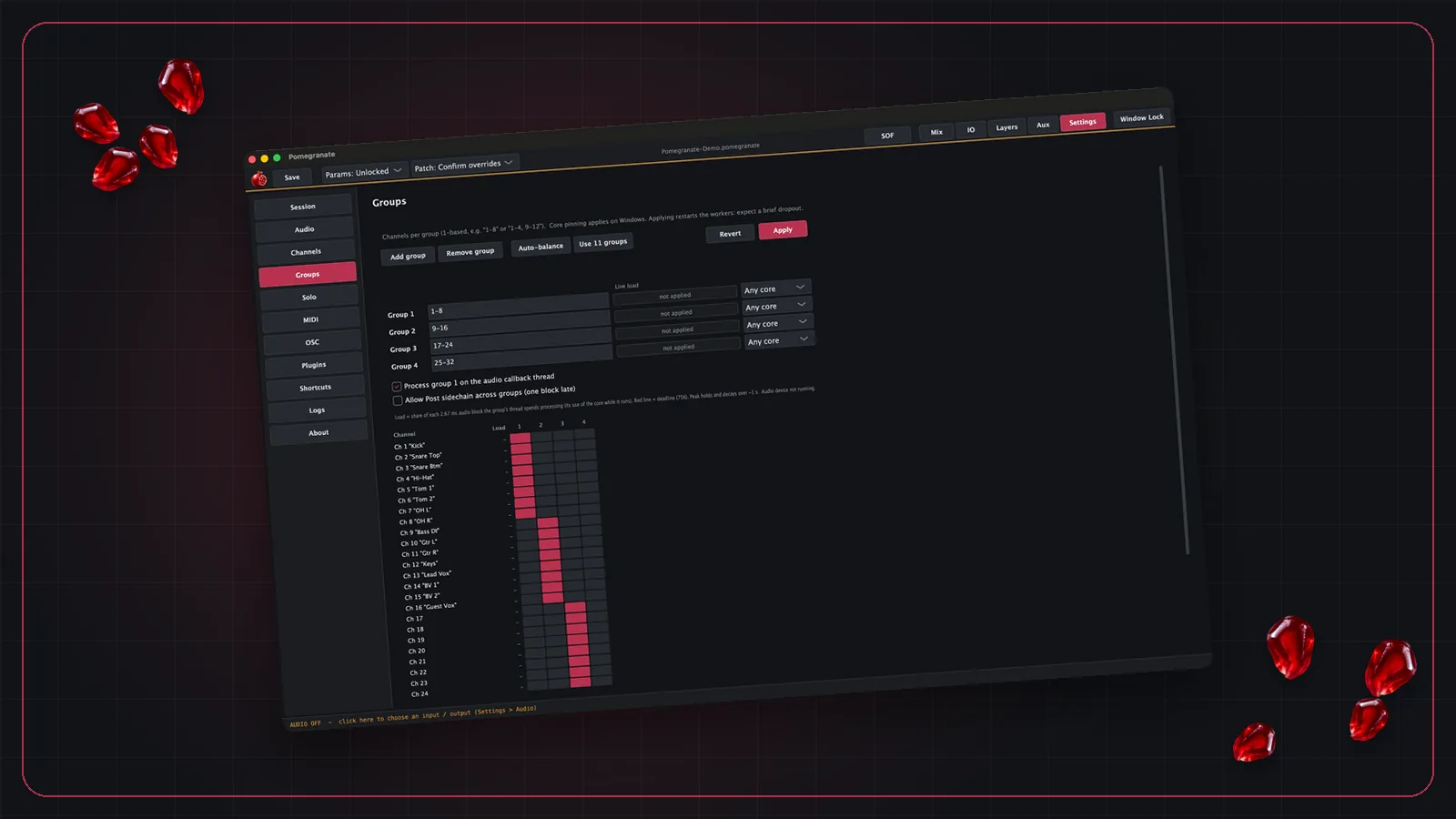
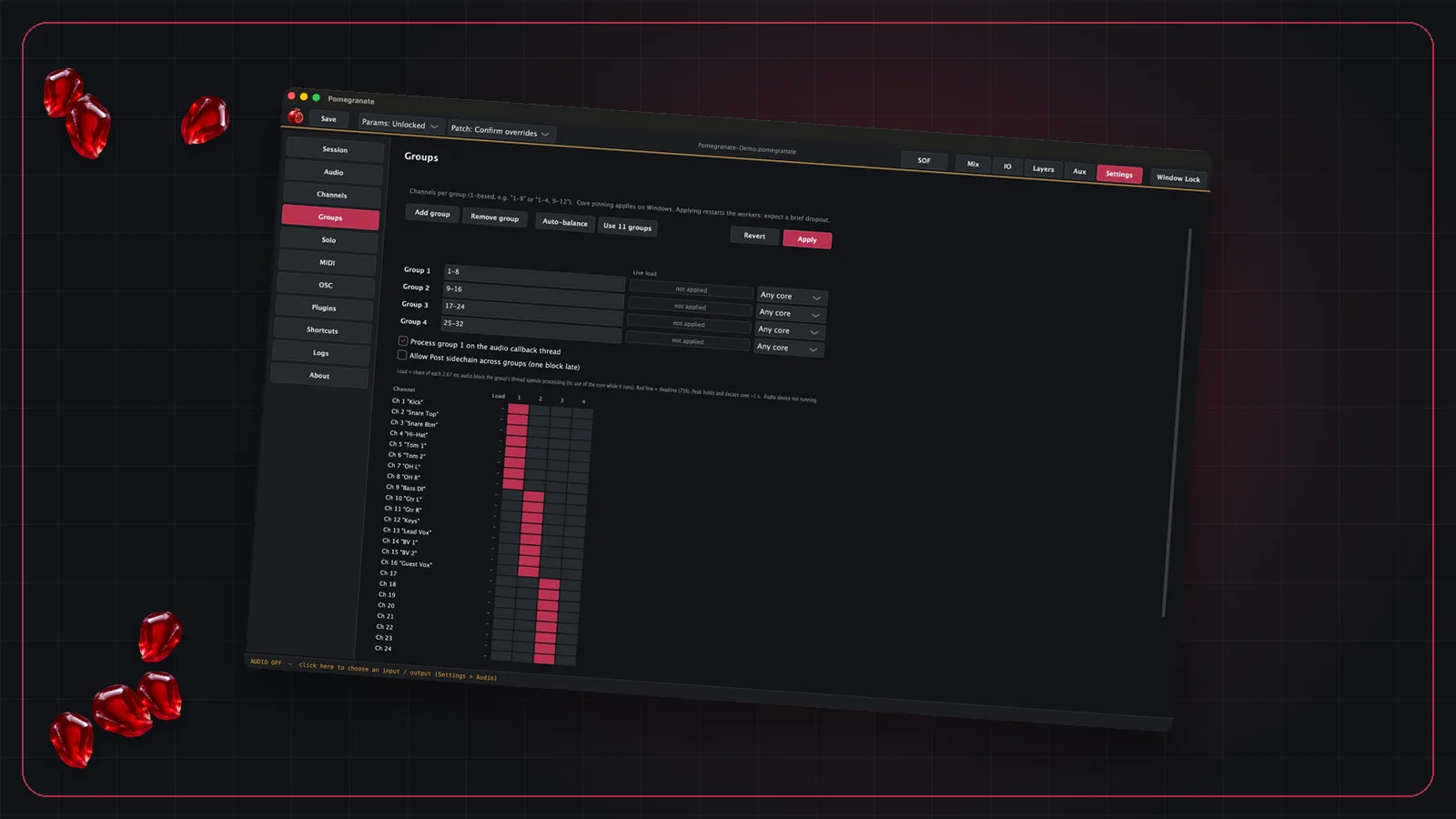
- Spread the load across CPU cores. A small buffer fails when any one core runs out of time. Pomegranate splits channels into thread groups that run side by side, and auto-balance suggests an even split from the load it measures.
- Test at show load. Open every channel with every plugin you plan to use, run audio through all of it, and leave it running. Drop the buffer one step at a time until you hear a click, then go back up one step and add some headroom.
Frequently asked questions
What buffer size should I use for live sound?
Use the smallest buffer your computer can run without clicks or dropouts at your full channel and plugin count. On a well-tuned machine that is often 32 or 64 samples at 48 kHz. Test at show load, not with an empty session.
How do I calculate latency from buffer size?
Divide the buffer size in samples by the sample rate. 64 samples at 48,000 Hz is 64 ÷ 48,000 = 1.33 ms. Round-trip latency is at least two buffers (in and out), plus converter and driver overhead.
Does a higher sample rate reduce latency?
At the same buffer size in samples, yes: 64 samples at 96 kHz is half the time of 64 samples at 48 kHz. But each buffer has to be processed in half the time, so the CPU works roughly twice as hard, and MADI carries half as many channels at 96 kHz.
Why do some plugins add extra latency?
Look-ahead limiters, linear-phase EQs and some pitch and noise tools need to see audio before they process it, so they report extra delay to the host. The host compensates so channels stay aligned, but the extra delay still adds to the total.