· The Pomegranate team · 7 min read
Choosing a computer for live plugins: CPU, settings and LatencyMon
What makes a laptop or PC good for running plugins at a live show: single-core speed vs cores, power settings, C-states, Wi-Fi, and testing DPC latency with LatencyMon.
In a live plugin rig the computer is the processor. It decides how many plugins you can run, how small the buffer can be, and whether you hear a click in the middle of a ballad. Here's what to look for, and how to set up the machine you have.
CPU: single-core speed and core count
At small buffer sizes, every plugin chain has to finish within one buffer, often just over a millisecond. A chain on one channel runs on one core, so fast single cores matter. As PC Audio Labs puts it, single-core speed is critical for real-time audio at low buffer settings.
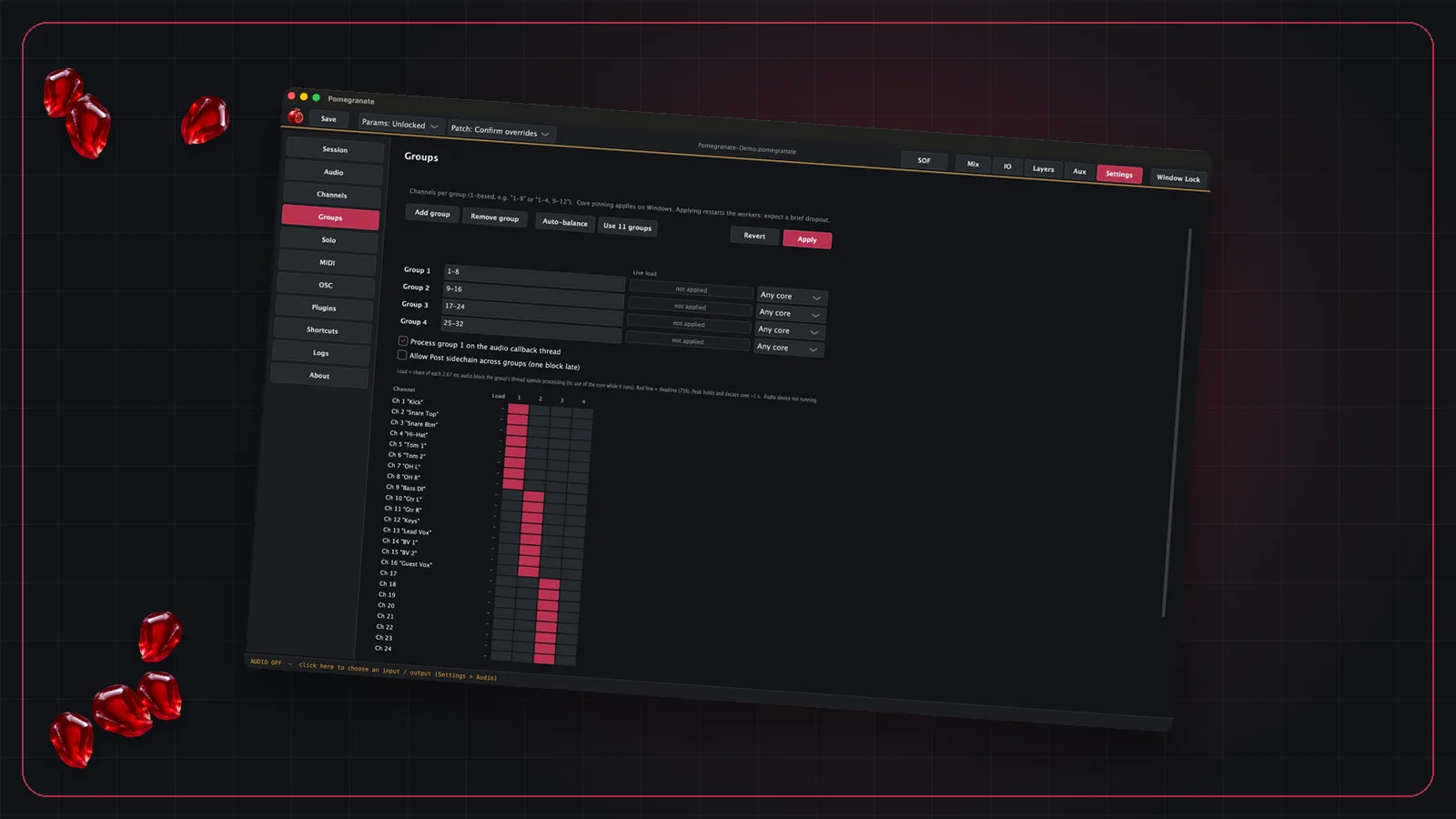
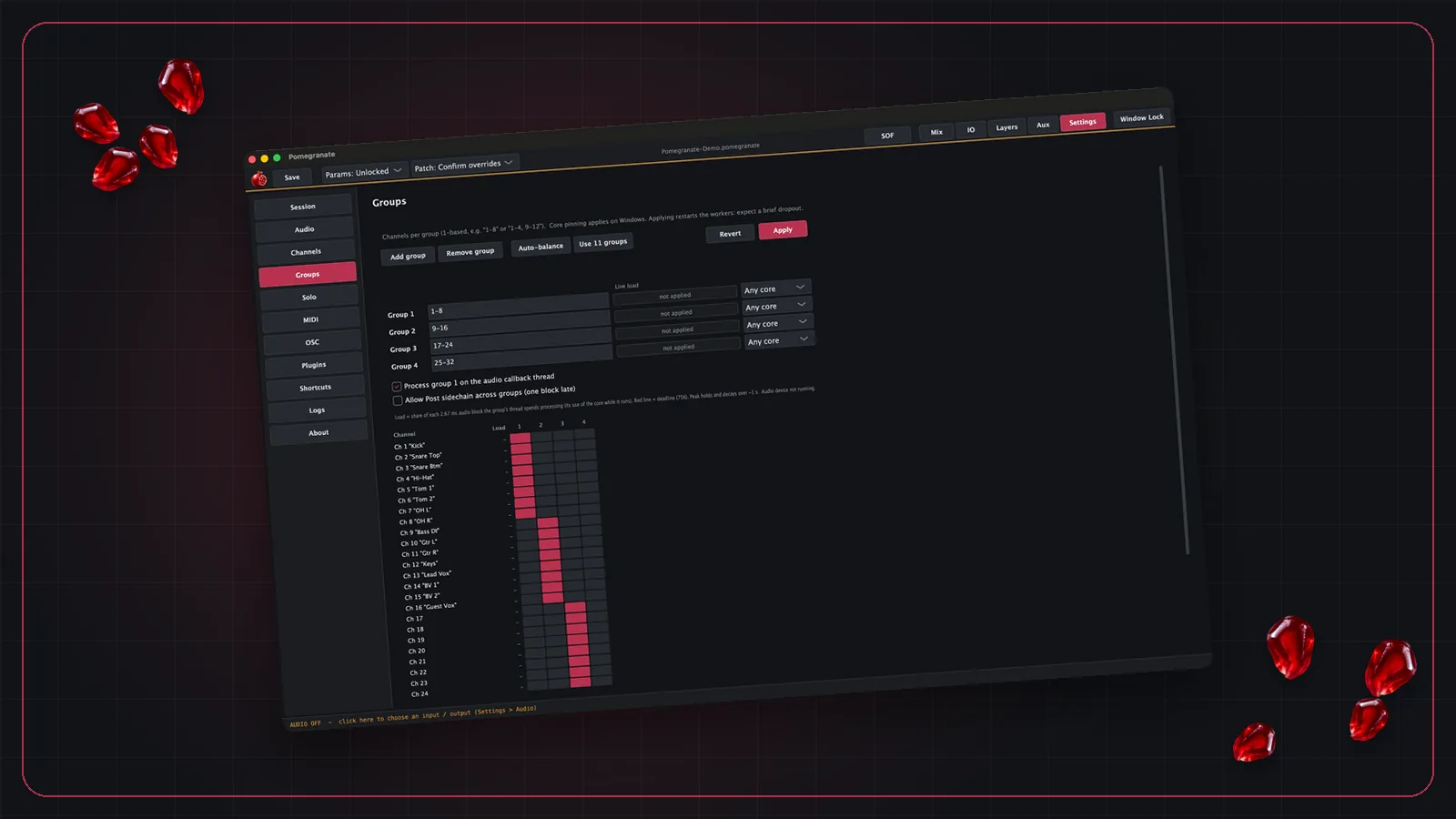
More cores let you run more channels at once, but only if the host spreads the work. Pomegranate splits channels into thread groups that run side by side, and auto-balance suggests an even split based on measured load. So a CPU with both fast cores and plenty of them is the goal.
Windows power settings
Power saving is the enemy of steady, low latency. Following Steinberg's Windows guide:
- Use the High Performance power plan, with sleep set to Never.
- Disable USB selective suspend.
- Consider disabling CPU C-states in the BIOS. Steinberg notes that C-states let the CPU sleep when idle, which can interfere with real-time audio.
- Disable components you don't need, including Wi-Fi.
Advice differs on Turbo Boost and Hyper-Threading: some guides disable them, others keep Turbo on. Test both on your machine with your session, and keep the setting that runs the smallest buffer without dropouts.
Test DPC latency with LatencyMon
On Windows, a badly behaved driver (often Wi-Fi, Bluetooth, graphics or power management) can hold up the audio driver and cause clicks, even on a fast machine. LatencyMon, from Resplendence, measures the longest ISR and DPC execution times and shows which driver is responsible.
- Run LatencyMon for several minutes while audio is playing.
- If it reports problems, note the driver it names, disable that device in Device Manager, and test again.
- Work through non-essential devices one at a time. Wi-Fi is a common culprit.
Show-day habits
- Turn off Wi-Fi and Bluetooth unless you need them. If you use a tablet for OSC control, a wired network is more dependable.
- Pause updates. Don't let the operating system or an app update itself before a show.
- Close everything else. The plugin host should be the only thing running.
- Use mains power for laptops, with the power plan set to High Performance.
- Test at show load. Run the full session, every channel and plugin, for longer than the show lasts.
The audio interface
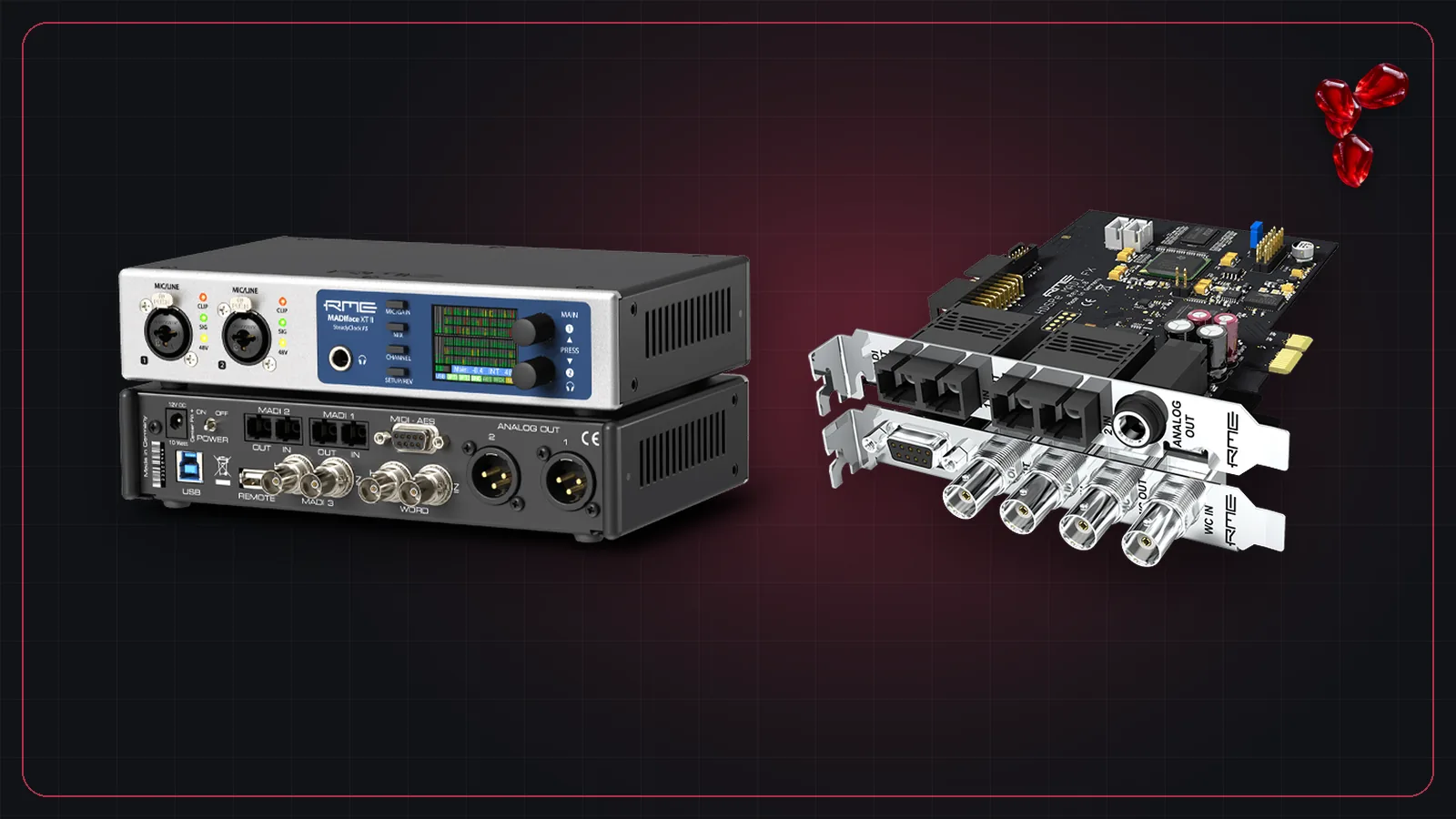
The interface and its driver are the other half of the latency picture. For MADI, see our guide to RME MADI interfaces, and for the numbers, latency in live sound.
Frequently asked questions
Is single-core speed or core count more important for live audio?
Both matter. At small buffer sizes, each chain has to finish within one buffer, so fast single cores help. More cores let a host that spreads work across them run more channels at once.
What is DPC latency?
On Windows, drivers do some of their work in deferred procedure calls (DPCs). If a driver takes too long, the audio driver can miss its deadline and you hear a click or dropout. LatencyMon measures this and shows which driver is responsible.
Should I turn off Wi-Fi for a live show?
It's a good idea. Wireless adapters are a common cause of DPC latency spikes. Test with LatencyMon with Wi-Fi on and off. If you need a network for remote control, a wired connection is usually more reliable.